BCAT Help Center
Clear steps for every community.
Search the Marketplace and Masjid Connect manuals, follow setup checklists, or download the illustrated guide for offline reference.
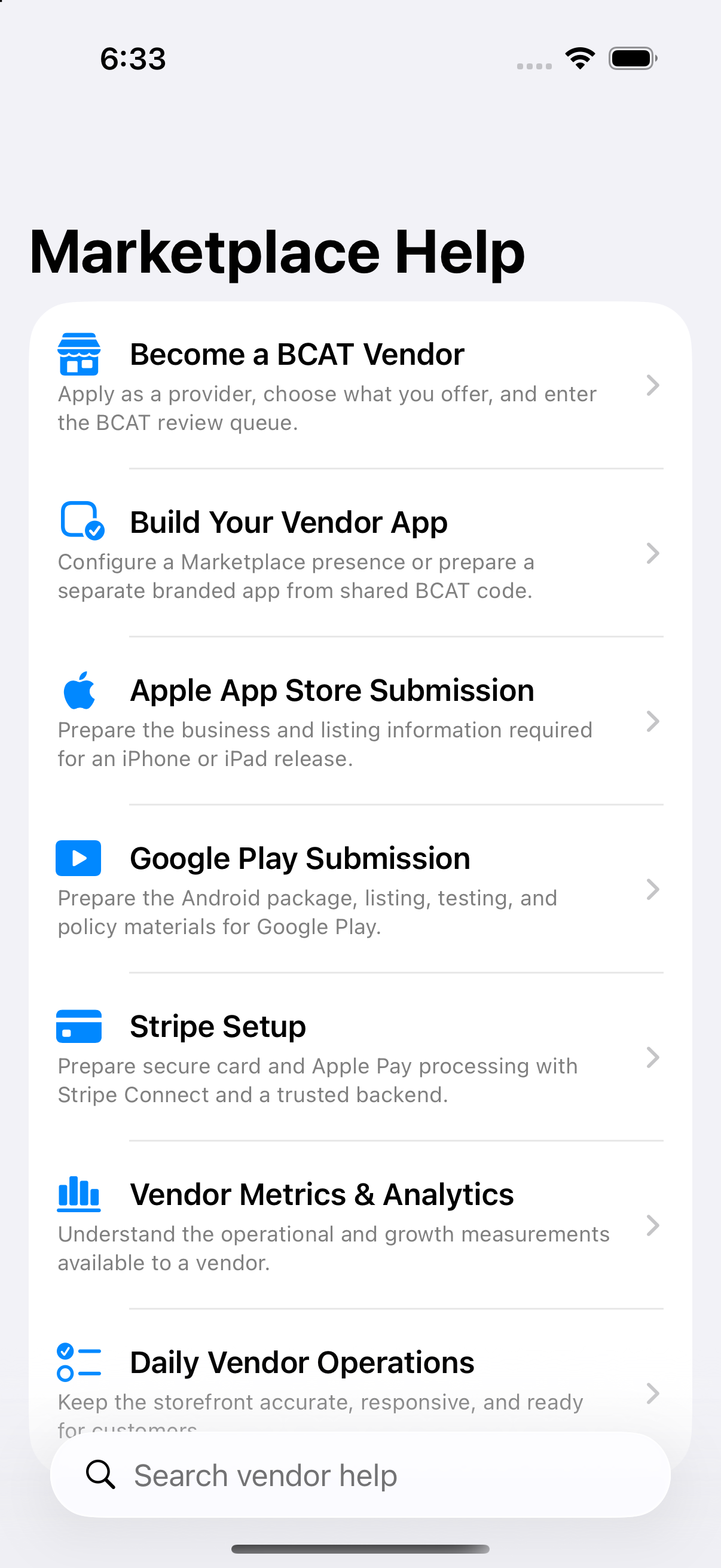
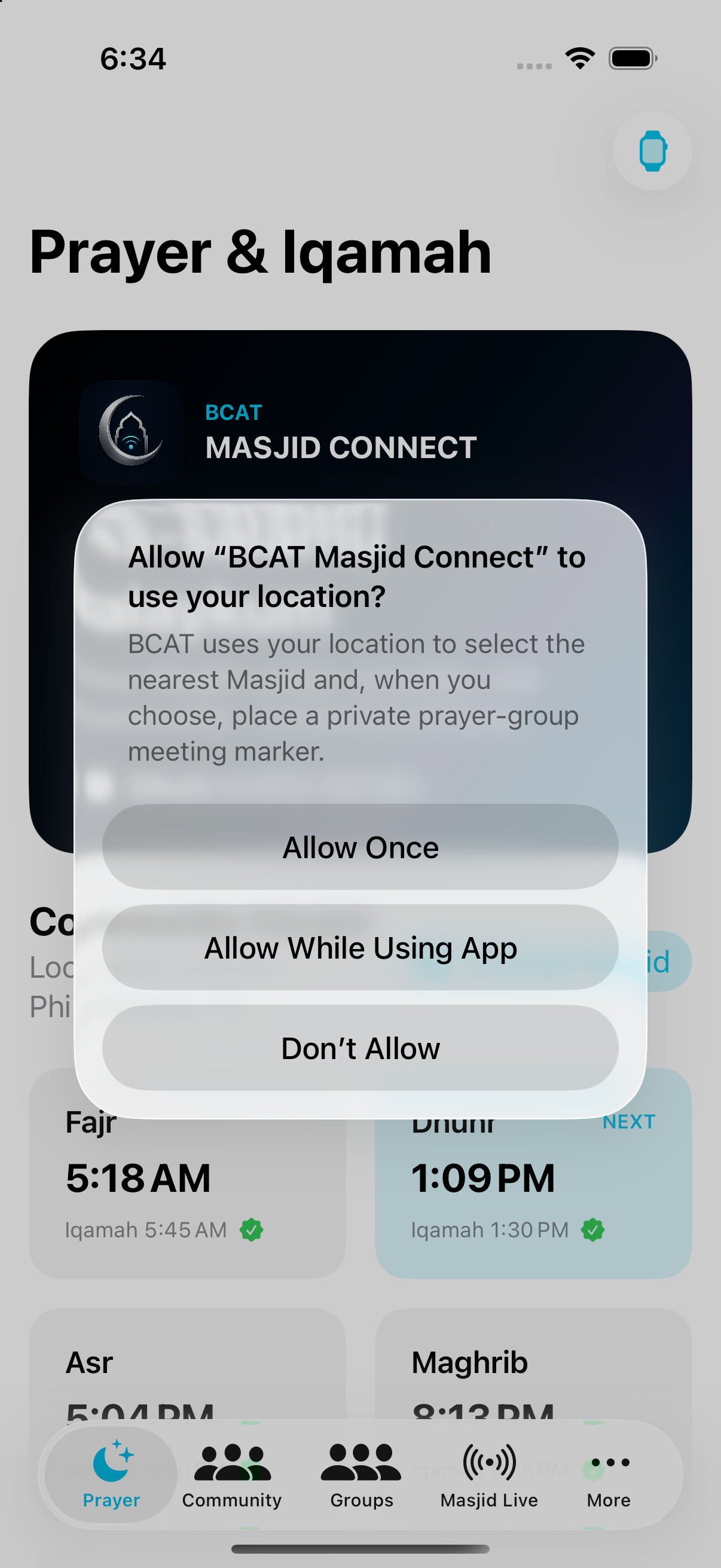
Help inside every app
Use the website or follow along inside the app.
The in-app guides stay close to the buttons and workflows they explain. This website adds longer account setup instructions, searchable sections, official references, and a printable manual.
- Vendor application and app building
- Apple Developer and store submission
- Stripe Connect payments and payouts
- Masjid moderation and prayer groups
- Offline Qur'an and Watch guidance
Step-by-step library
Find the answer you need.
Masjid ConnectSchedule classes and plan your media funding
Use public YouTube broadcasts or an approved private class area with your existing meeting provider.
+
- Complete Masjid authorization, verify the administrator email and have BCAT approve organization access.
- Select the Masjid, open Settings → Masjid Administration, sign in and load the organization. Choose Manage classes, broadcasts & media funding.
- Create a session with its title, start/end, direct HTTPS provider link and recording notice. YouTube sessions are public; Zoom, Teams and Google Meet sessions require approved members or invited account UIDs.
- Set an optional USD ticket price for a private event or class. It is separate from the organization's BCAT media fee; a positive ticket price always requires verified paid access. Ticket collection is not enabled yet.
- Grant or revoke private-class membership using the member account UID. This does not grant administration or a paid entitlement. Enable authenticated participants, waiting rooms and passcodes in the meeting provider.
- Members open BCAT Media → Classes, meetings & public broadcasts. They sign in for private access and may request a reminder 15 minutes before a future session. Join links open only after a current access check, within 30 minutes of the session.
- Review Media pricing & funding goals. Planning fees are $19/month for coordination with your own provider, or proposed BCAT hosting at $29/event and $49/month with stated usage limits.
- Only verified, settled and uncommitted media reserve counts. Request activation review after the plan fee is covered; no automatic charge or broadcast starts. BCAT hosting and individual paid-access billing still require provisioning and approval.
Important: Public YouTube links remain free. Estimated counts are not verified payments. Donations never unlock paid media; the same reserve cannot fund multiple fees. Provider licenses, recording consent and paid digital-class purchase requirements remain separate.
Masjid ConnectSet up and manage your Masjid organization
Verified Masjid administrators publish official settings and choose organization locks.
+
- Submit the Masjid authorization form using a monitored official contact and evidence of your authority. BCAT reviews the representative and organization before approval.
- Use a BCAT account with a verified email. Ask BCAT to assign that account to the approved organization; signing up or selecting an administrator role does not grant access.
- In the updated Masjid Connect app, use Change Masjid to select the approved Masjid. Open Settings → Masjid Administration and sign in with the approved account.
- Load the current settings. Review all five recurring adhan and iqamah times in 24-hour format, enter the Masjid’s timezone, and set the schedule valid-through date. Expired official times stop applying until updated. Review seasonal times regularly.
- Add a community notice or service summary, official HTTPS social links, an optional PNG/JPEG logo hosted on the Masjid’s official website, a brand color theme, and a shared TV motion theme. Select the sections to mark as managed and Publish organization settings.
- A branding lock applies the Masjid color theme; personal light/dark appearance stays available. A locked TV theme overrides the local TV theme. Official prayer and community information is labelled Managed by your Masjid. Personal notifications, audio, accessibility and voluntary worship choices remain with each user.
- On iPhone, open Publish events, Ramadan & Eid dates. Link to the announcement on your official website, confirm its dates and timezone, and publish. For a one-day event, the all-day end date is the next day.
- Active devices refresh within five minutes. If another admin saves first, reload before editing again. Contact BCAT to revoke access when an administrator leaves.
Important: Access is limited to the verified organization and changes are recorded. Public unclaimed listings cannot grant administrator access. Marketplace payments, moderation activation, streaming and official profile sharing retain their separate approval and rollout requirements. Calendar alerts are opt-in and refresh while the app is active.
MarketplaceBecome a BCAT vendor
Apply as a provider and prepare the business for BCAT review.
+
- Sign in with the account that will own or manage the business.
- Open Account, choose Become a Vendor, and enter the public business name.
- Select the provider categories, capabilities, offerings, and publishing destinations that apply.
- Review required verification items, submit the application, and monitor reviewer feedback.
- After approval, use the vendor workspace to configure the storefront and daily operations.
Important: Applicants cannot self-approve verification. BCAT Marketplace remains included with an approved vendor plan.
MarketplaceSet up an Apple Developer account
Prepare the legal organization, Account Holder, team roles, and App Store Connect account.
+
- Choose an employee with authority to bind the organization. The enrollee becomes the Account Holder.
- Use an Apple Account with two-factor authentication, the Account Holder's legal name, and a monitored business email.
- For organization enrollment, prepare the exact legal entity name, D-U-N-S Number, headquarters address and phone, public website, and verification contact.
- Enroll through Apple Developer, complete identity and authority verification, accept the agreement, and purchase the annual membership after approval.
- Invite BCAT or staff in App Store Connect using the least-privileged role needed. Keep Account Holder control with the business.
- Accept current agreements and complete tax and banking setup if the account will sell paid apps or in-app purchases.
- Create the app record with its permanent bundle identifier, name, primary language, SKU, privacy details, screenshots, and reviewer access instructions.
- Test through TestFlight before selecting the build and submitting it for App Review.
Important: Apple uses the verified legal entity as the organization seller name. A DBA or trade name is not the legal entity for enrollment.
MarketplaceShare an approved Vendor Mini-App
Give customers a direct path to your BCAT storefront before or alongside a standalone store release.
+
- Open the Vendor Dashboard, complete Build Your App, and keep BCAT Marketplace selected as a publication destination.
- Choose the branding, description, and customer modules, then submit the configuration for BCAT review.
- After approval, return to the Builder review step and open Approved Mini-App.
- Choose Share Mini-App and send the invitation through Messages, email, social media, or another available sharing destination.
- During beta, customers receive the direct BCAT vendor link and Marketplace TestFlight link.
- For public release, one BCAT smart web link will open the Mini-App, vendor App Store app, vendor Google Play app, or browser storefront according to the customer's device and available installations.
Important: Mini-App approval does not activate payments, ordering, bookings, or broadcasting unless those services are separately approved and enabled.
MarketplaceConnect Stripe for vendor payments
Optional Stripe Connect onboarding lets an eligible vendor accept electronic payments and receive payouts.
+
- Decide whether the vendor wants electronic payments. A vendor can remain cash-only when the approved BCAT workflow permits it.
- Open the secure Stripe Connect onboarding link from the vendor payment area when BCAT enables it.
- Enter the exact legal business, tax, address, website, support, ownership, and authorized-representative information Stripe requests.
- Review the Connected Account Agreement and provide identity, licensing, or ownership documents when requested.
- Add the vendor-owned checking account or eligible debit card used for payouts and verify the details carefully.
- Return to Marketplace and confirm details submitted, charges enabled, payouts enabled, and no outstanding requirements.
- Test successful and failed payments, refunds, receipts, webhooks, disputes, payout reporting, and reconciliation before live activation.
- Monitor Stripe alerts and complete new verification requests promptly to avoid payment or payout pauses.
Important: Never send passwords, one-time codes, tax IDs, identity documents, full banking details, or secret API keys through email, chat, or community posts.
MarketplaceUnderstand vendor payments and metrics
Follow the money from customer payment to vendor payout and use operational metrics responsibly.
+
- A customer payment records the charge, processing fee, refund or dispute activity, and balance transaction.
- Any disclosed BCAT platform fee follows the configured Stripe Connect model.
- Eligible funds move from pending to available before Stripe sends a payout to the vendor destination.
- Review revenue, orders, average ticket, rating, completion rate, peak hours, preparation time, and top items together.
- Compare Marketplace reports with Stripe, bank, tax, and accounting records before making financial decisions.
Important: Payout timing varies by country, industry, weekends, bank holidays, account configuration, and Stripe eligibility.
Masjid ConnectStart using Masjid Connect
Select a masjid, review prayer information, and open the community and learning areas.
+
- Choose Allow While Using App for automatic nearest-masjid selection, or keep location disabled and select information manually.
- Use Prayer for salah and iqamah information, Community for local participation, Groups for private prayer groups, and Masjid Live for authorized broadcasts.
- Open Qur'an content while online before relying on offline reading or recitation, and test airplane mode before travel.
- Install the Watch companion through the paired iPhone and allow required permissions for synchronized prayer information.
Important: The local masjid's announced congregation time takes priority over a calculated device time.
Masjid ConnectModerate a masjid community
Manage members, posts, community spaces, media, and live sessions consistently.
+
- Review member requests against the masjid's published eligibility policy.
- Assign the least access needed and review moderator roles regularly.
- Review posts, comments, profile images, and media reports promptly.
- Edit, hide, remove, or escalate content using documented and consistent reasons.
- Configure spaces, posting access, announcements, and live-session expectations.
- Record and escalate serious safety, harassment, fraud, or safeguarding concerns through masjid leadership.
Important: Moderation should be transparent, consistent, proportionate, and focused on community safety.
Masjid ConnectShare an approved Masjid profile
Guide worshippers directly to the correct authorized Masjid profile and installation options.
+
- Complete the Masjid authorization process and confirm the official representative's email or phone with BCAT.
- Sign in with the approved Masjid administrator account and select the organization under Change Masjid.
- Review the public name, general location, prayer source, community destinations, and authorization badge.
- When profile sharing launches, use Share Masjid Profile to send one smart link or QR code through Messages, email, social media, print, or the Masjid website.
- Masjid Connect users will open with that Masjid selected; other visitors will see its approved web profile and official installation choices.
- A Masjid's separate Apple app, Android app, or website can appear as an additional destination without replacing its Masjid Connect profile.
Important: Change Masjid selects a community but never grants moderator access. Official sharing will remain limited to authorized profiles and administrators.
Masjid ConnectCreate and manage a prayer group
Organize a private friends and family prayer group with validated invites and location privacy.
+
- Create the group with a clear name and general area without placing a private home address in its public description.
- Set a prayer location or GPS marker only with the property holder's permission.
- Choose the privacy and participation expectations for the group.
- Generate an invite for the intended person. Invites are validated, single-use, and expire after seven days.
- Keep schedules and access instructions current, review membership, and remove unsafe or outdated access promptly.
- Clearly state whether the group is independent or officially affiliated with a masjid.
Important: Share the least precise location necessary and consider the safety of children, elders, hosts, and participants.
Official references
Verify external requirements before submitting.
Apple and Stripe can change enrollment, verification, account, or payout requirements. Start from official pages and never follow credential instructions from unsolicited messages.